How to Choose the Best Laptop Stand for Your Needs

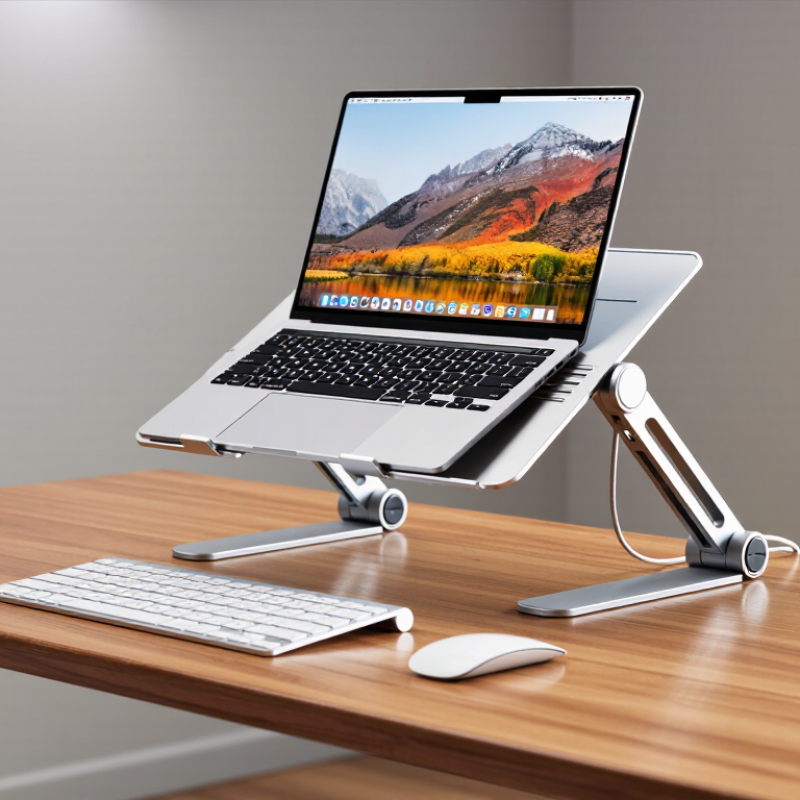
Choosing a Laptop Stand is not just about lifting a screen. It is about making everyday work more comfortable without creating new problems. A raised display can help bring the screen closer to eye level, while a separate keyboard and mouse allow a more flexible typing position. Small changes matter.

The U.S. Occupational Safety and Health Administration’s Computer Workstations eTool recommends placing a monitor directly in front of you, with its top at or below eye level. Its guidance also highlights viewing distance and relaxed, neutral posture. These are useful starting points, not a substitute for individual assessment. The CDC’s National Institute for Occupational Safety and Health also publishes computer-workstation ergonomics guidance for workplace setup. Together, these professional resources explain why stand height, angle, and stability deserve more attention than appearance alone.

A practical choice depends on your laptop size, desk depth, working habits, and whether you travel with your equipment. Check the stand’s supported screen size and weight, then consider adjustability, ventilation, footprint, and how firmly it holds the device. A tall stand may improve screen position but make typing directly on the laptop less comfortable. That trade-off is easy to miss. No single design suits every desk or body, and product descriptions cannot confirm real-world stability on your surface. This guide will help you weigh those details and choose a Laptop Stand that fits your routine, rather than buying one based on looks alone.
How to Choose the Best Laptop Stand for Your Needs

Identify Your Laptop, Workspace, and Ergonomic Needs

Before choosing a stand, check your laptop’s screen size, weight, and underside. Measure the desk space too: a wide base can crowd a small work surface, while a narrow one may feel unstable. OSHA’s Computer Workstations eTool recommends keeping a display about 20–40 inches from your eyes, with its top at or below eye level. Use that range as a starting point, not a rigid rule; your chair and eyesight matter.

A raised laptop often needs a separate keyboard and mouse. Otherwise, reaching up to type can leave your shoulders tense and wrists bent. Try the setup for a few minutes: can you look ahead without tipping your chin, and keep your elbows close to your sides? Check whether the stand adjusts high enough for your seated posture, then confirm it stays steady when you type. A stand can still feel wrong. I’d recheck the height after moving desks or changing chairs; small shifts can alter the fit. OSHA’s guidance offers practical workstation measurements, but comfort is personal, and persistent pain deserves qualified advice.

Compare Laptop Stand Types and Adjustment Options

A laptop stand should solve a specific desk problem, not just make the screen look higher. Fixed risers are light and steady, but they work best when one height suits your chair and desk. Foldable stands travel easily; some can wobble under typing. Adjustable models offer more range, while articulated arms free desk space but need a secure clamp. Small details matter: check the stand’s footprint, hinge tension, and whether it leaves room for airflow beneath the laptop.

Adjustment range is more useful than a tall maximum setting. The U.S. Occupational Safety and Health Administration’s Computer Workstations eTool recommends placing a monitor about 20–40 inches from the eyes, with its top at or below eye level. Use those measurements as a starting point, then check your posture while seated. Your shoulders should stay relaxed, and the screen should not force your chin upward. A stand paired with a separate keyboard and mouse can help keep the screen raised without making your wrists reach awkwardly. Not every desk needs that setup. I would measure the seated eye-to-screen distance before buying; it is an easy step to skip, and an annoying one to regret.

Check Device Compatibility, Stability, and Build Quality

A laptop stand should match the device it will actually hold, not just look suitable online. Check the laptop’s screen size and weight against the stand’s stated limits. Measure the base and the space around your desk, too. A wide laptop may cover side ports or sit awkwardly on a narrow shelf. Leave room for charging cables and airflow beneath the computer. Small details matter.

Stability is easiest to judge with the laptop in place. Type normally and notice whether the screen shakes or the base slides. A little movement can become annoying during long work sessions. Check that adjustable joints hold their angle without slipping. Build quality shows in the details: smooth edges, firm hinges, and a platform that does not flex under light pressure. Metal can feel sturdy, but material alone does not guarantee a stable design. Plastic stands vary, too. I would not choose by appearance alone; it is easy to overvalue a clean finish before testing the fit. If possible, try the stand with your device and preferred keyboard setup. A slightly imperfect fit may still work, but blocked ports or a wobbly base are hard to ignore.

How to Choose the Best Laptop Stand for Your Needs - Check Device Compatibility, Stability, and Build Quality

Stand Type Best Suited For Device Compatibility Checks Stability Considerations Build Quality to Look For Main Trade-Off
Fixed-angle laptop stand Desk setups where the screen height and working position rarely change. Check that the platform width and depth support the laptop’s base, and that the front retaining lip does not cover ports or controls. A broad base, firm joints, and non-slip contact points help limit movement while typing. Look for rigid metal or reinforced construction, smooth edges, and securely attached pads. Usually less adjustable and less compact than folding designs.
Adjustable-angle stand Users who want to change screen height or angle, or share a workstation. Confirm the platform fits the laptop and that the stand’s stated load limit exceeds the device’s weight. Locking hinges should hold the selected position without slipping; a heavier or wider base can help reduce wobble. Inspect hinge tension, locking parts, fasteners, and padding for durable, even contact. More moving parts can mean additional weight and maintenance.
Portable folding stand Travel, temporary workspaces, and users who pack their accessories regularly. Compare the stand’s supported device-size range with the laptop’s dimensions; check that the folded stand fits your bag. Fully open and lock the stand before use; narrow legs may be less steady on soft or uneven surfaces. Choose sturdy hinges, secure locking points, and replaceable or well-attached non-slip feet. Compact designs may provide a smaller platform or fewer height settings.
Vertical storage stand Clearing desk space when using a laptop with an external monitor, keyboard, and mouse. Measure the laptop’s closed thickness and check the holder’s adjustable slot range; ensure the closed device can be seated without pressure. A wide, weighted base and a snug but non-compressing fit help keep the laptop upright. Look for a stable base and soft lining where the stand contacts the laptop’s casing. Designed for storage rather than use with the laptop open.
Elevated riser platform Raising a laptop to a more comfortable viewing height on a dedicated desk. Check platform dimensions, clearance for any vents on the underside, and the rated load capacity. A wide footprint and a level, rigid platform help prevent rocking, especially with a separate keyboard in use. Assess frame rigidity, surface finish, edge quality, and the durability of feet or pads. Often less portable and may require more desk space.

Fit tip: Laptop dimensions and vent locations vary. Measure your device and check the stand’s published size and load limits before buying; use an external keyboard and mouse when raising the laptop for extended typing.

Evaluate Portability, Cooling, and Desk-Space Requirements

Choose a stand by measuring your laptop, bag, and actual desk before shopping. A lightweight folding model suits commuters, but tiny hinges can wobble on a crowded train table. Check its folded thickness and the space needed for an external keyboard. That extra keyboard matters: raising a laptop screen also raises its attached keyboard, which can leave wrists awkwardly bent.

OSHA’s Computer Workstations eTool recommends placing a monitor about 20–40 inches from the eyes, with its top at or slightly below eye level. Use those measurements to judge whether a stand can lift your screen without pushing it too far back. Small details matter. For cooling, look for an open underside that lets air circulate; a raised laptop is not automatically a cooler laptop. Fan-based stands also need a cable and an available port. Desk space is easy to underestimate. Measure the stand’s base, then leave room for a mouse to move freely. I would treat airflow claims cautiously, since product photos rarely show how a stand performs during a long video call or under heavy workloads.

How to Choose the Best Laptop Stand for Your Needs

Compare common stand styles by portability, cooling potential, and desk-space efficiency.

Ratings are qualitative planning guides, not standardized test results. Fold-flat stands suit frequent travel, ventilated stands prioritize airflow, and vertical stands save the most desk space when the laptop is used with an external display and peripherals.

Balance Essential Features Against Your Budget

How to Choose the Best Laptop Stand for Your Needs

Balance Essential Features Against Your Budget

A laptop stand does not need every adjustment or accessory to be useful. Start with the problems you actually notice: a screen that sits too low, a crowded desk, or a neck that aches after video calls. Measure your laptop’s width and desk space before shopping. A few centimeters can matter. A stable base and a comfortable viewing height usually deserve more of your budget than decorative finishes. If you type directly on the laptop, check that the stand does not wobble under ordinary keystrokes.

Consider how often the stand will move. A foldable aluminum model may suit a commuter, while a heavier, fixed stand can feel steadier at home. Pay for tilt or height adjustment only if you expect to use it; extra joints can add cost and loosen over time. Check the listed weight limit and make sure the laptop’s vents remain clear. Small details count. I used to assume the tallest setting was automatically best, but it can make a screen feel awkward if your chair and desk are low. A low-cost stand can be enough, though very thin plastic may flex. Compare materials, return terms, and real dimensions, not just feature lists. The right choice is the one that solves your daily discomfort without buying adjustments you will rarely touch.